
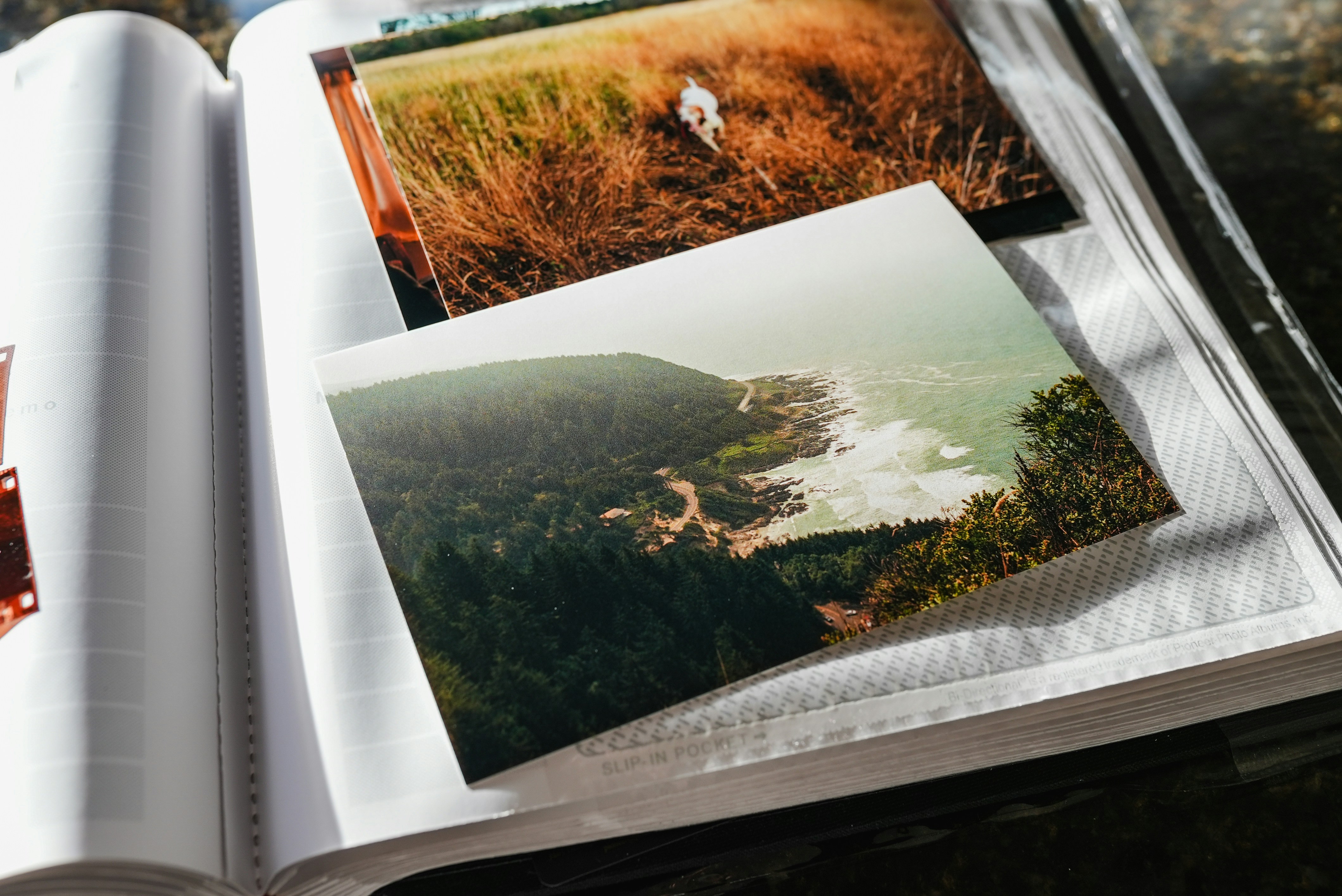
Presuming you already have a collection of pictures, movies, or other recordings, now it’s time to share them with your slideshow story editor.
Setting the Tone
Everyone’s story has its own beat and rhythm. Some are uplifting, others are quiet and reflective, and sometimes they’re even funny. Think about the tone you’d like to see, and share your thoughts — even vague ones — with your story editor to help them shape the narrative.
Choose What Matters Most
Pick the images and recordings that feel meaningful, not just the ones that look “perfect.” A blurry photo that captures a laugh or a moment of connection is just as powerful as a posed portrait.
Context is Everything
A photo is wonderful on its own, but the story behind it makes it even more meaningful. Add any details you can:
- What’s happening in the picture
- Names of people, places, or things
- The date it was taken — even just the year or decade helps
- Any small memory or moment that gives it life
These details help your editor understand the significance of what they’re seeing.
Flag “Must‑Include” Items & Sequencing
Some things are non‑negotiable. If you have a cherished picture, or want to end the slideshow with a specific image, let your story editor know. Examples include:
- Absolute favorites
- Items with deep emotional significance
- Anything that must appear in the final story
Chances are these must-haves likely have a story attached to them, which can help shape the narrative even more.
Bigger Is (Mostly) Better
Share the highest‑quality version of each file you can. That means sending the original photo or video from your library and not a screenshot. Some apps automatically shrink or compress files when sending, which is fine for everyday use but not ideal for storytelling. Whenever possible, choose the size that preserves full quality (sometimes represented as small, medium, or large attachment options).
Many services, like Gmail, will automatically upload large files to a cloud drive before sending them. That’s a great way to keep everything crisp and clear.
Avoid “Screen Shots”
Screenshots often include black bars, photo controls, or other visual clutter that reduces quality. They work in a pinch, but the final result won’t look as good as it could.
Instead, share the original photo directly from your camera roll. It’s quick and gives you the best possible version. Here’s how:


Instead of a screen shot you can more easily share a photo from your camera roll, no screen shot necessary. Here’s how:
Tap “share” button

Choose the app

Choose recipient

Confirm Permissions
If you plan to include media created by others, be sure to ask for permission. It doesn’t need to be formal; a quick email or text is a thoughtful acknowledgment of their contribution. This is especially important for public‑facing memorials, including:
- Photos taken by others
- Images pulled from social media
- Professional portraits
Related Journal Entries
- Reflections in Sound and Picture – Our lives leave traces in pictures, recordings, and the small moments we save. These reflections help Wildflower tell your wonderful person’s story, and gathering them can become a meaningful, even uplifting, part of remembering.
- The Easiest Ways to Share Photos and Videos – Sharing your photos and videos doesn’t have to be complicated. Whether you text, email, or use cloud storage, a few simple choices help keep everything high‑quality and easy for your story editor, making collaboration smooth and meaningful.
- Bringing Physical Memories Into the Digital World – You don’t need a scanner to preserve your physical memories. With just your phone, you can digitize scrapbook photos, framed images, and meaningful objects so your story editor can bring them to life in a vivid, heartfelt tribute.
Leave a Reply