
Presuming you already have a collection of pictures, movies, or other recordings, now it’s time to prepare them for your slideshow story editor.
Setting the Tone
Everyone’s story has its own beat and rhythm. Some are uplifting, others are quiet and reflective, and sometimes they’re even funny. Think about the tone you’d like to see, and share your thoughts (even vague ones) with your story editor to help them shape the narrative.
How do I pick the right pictures?
The pictures that matter are the ones taken at very special moments, and these moments rarely lend themselves to perfect focus and lighting. That’s normal and, I think, wonderful. A blurry or overexposed photo that captures a laugh or a moment of connection is more powerful than a posed portrait with a studio backdrop.
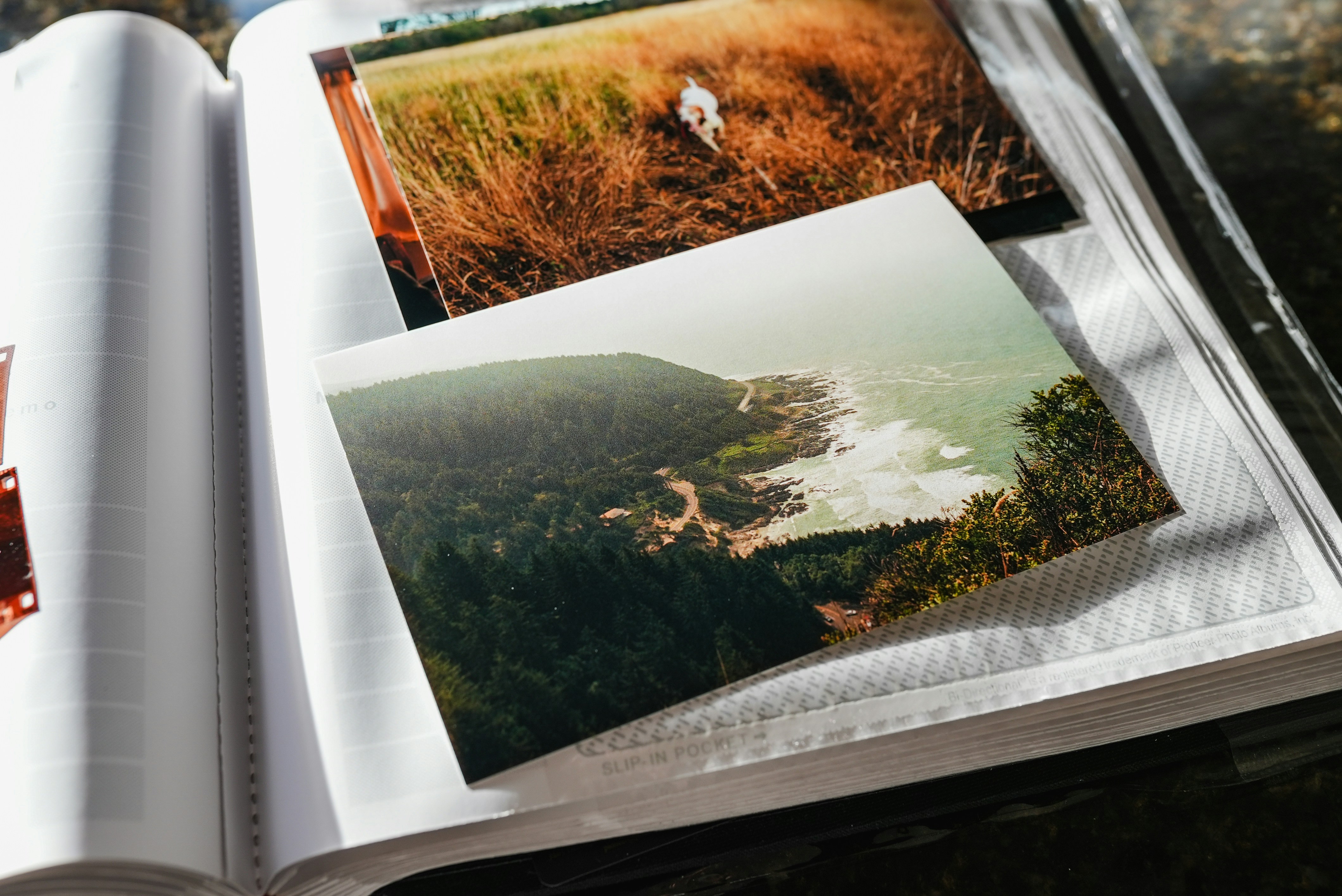
Similarly, pictures live with us, not in environmentally controlled archival storage. They live in picture frames, scrapbooks, and shoeboxes. They’re faded, torn, and bent; they have sticky tape damage and water stains. And, while restoration is absolutely possible, damage really isn’t damage, it’s just another part of the story. I personally take a light touch when it comes to restoration; I want the picture to keep that visceral quality that makes it seem you could almost touch it.
Should pictures have captions?
A photo is wonderful on its own, but the story behind it makes it even more meaningful. Add any details you can:
- What’s happening in the picture
- Names of people, places, or things
- The date it was taken; even just the year or decade helps
- Any small memory or moment that gives it life
These details help your story editor understand the significance of what they’re seeing.
What does my story editor need to know?
Your story probably has things that are non‑negotiable. If you have a cherished picture, or want to end the slideshow with a specific image, let your story editor know. Examples include:
- Absolute favorites
- Items with deep emotional significance
- Anything that must appear in the final story
Chances are these must-haves come with stories, which helps shape a powerful narrative.
What if my pictures are damaged, faded, or torn?
Memories live in the real world: framed pictures, scrapbooks, shoeboxes, wallets, newspaper clippings, cherished knick knacks, all scattered about the house. These memories should absolutely be part of the memorial video, and it’s not hard to have them included.
The easiest way is to use your phone to take a picture of the physical item. I cover this topic in greater detail in my post entitled Bringing Physical Memories Into the Digital World, but the short of it is just use what you have on hand to capture these treasures.
A scanner is another great tool for capturing those shoebox pictures. If you (or more likely your story editor) has one, it’s best to scan at higher resolutions so the memorial video looks its best. And don’t forget to scan the front and the back (which often has meaningful notes).
If you don’t live near your story editor, ask if they accept mail deliveries and of what kind. For example, I absolutely accept any pictures sent via mail, FedEx, UPS, or whatever is easiest for you.
What’s the best way to share digital pictures?
Share the highest‑quality version of each file you can. That means sending the original photo or video from your library and not a screenshot. Some apps automatically shrink or compress files when sending, which is fine for everyday use but not ideal for storytelling. Whenever possible, choose the size that preserves full quality (sometimes represented as small, medium, or large attachment options).
Many services, like Gmail, will automatically upload large files to a cloud drive before sending them. That’s a great way to keep everything crisp and clear.
Avoid “Screen Shots”
Screenshots often include black bars, photo controls, or other visual clutter that reduces quality. They work in a pinch, but the final result won’t look as good as it could.


Instead, share the original photo directly from your camera roll. It’s quick and gives you the best possible version. It all starts by opening you phone’s photo album (Photos on most iPhones). Then you find the picture you want to share. Here’s what you do next:
Tap “share” button

Choose the app

Choose recipient

Should I use pictures from social media or publications?
If you plan to include media created by others, be sure to ask for permission. It doesn’t need to be formal; a quick email or text is a thoughtful acknowledgment of their contribution. This is especially important for public‑facing memorials, including:
- Photos taken by others
- Images pulled from social media
- Professional portraits
Related Journal Entries
- Reflections in Sound and Picture – Our lives leave traces in pictures, recordings, and the small moments we save. These reflections help Wildflower tell your wonderful person’s story, and gathering them can become a meaningful, even uplifting, part of remembering.
- The Easiest Ways to Share Photos and Videos – Sharing your photos and videos doesn’t have to be complicated. Whether you text, email, or use cloud storage, a few simple choices help keep everything high‑quality and easy for your story editor, making collaboration smooth and meaningful.
- Bringing Physical Memories Into the Digital World – You don’t need a scanner to preserve your physical memories. With just your phone, you can digitize scrapbook photos, framed images, and meaningful objects so your story editor can bring them to life in a vivid, heartfelt tribute.
Other Resources
- How to scan photos (wikiHow) – No matter how you’re scanning your photos, wikiHow can help you get your scans and make them the highest quality possible.
Leave a Reply